
 Add to Chrome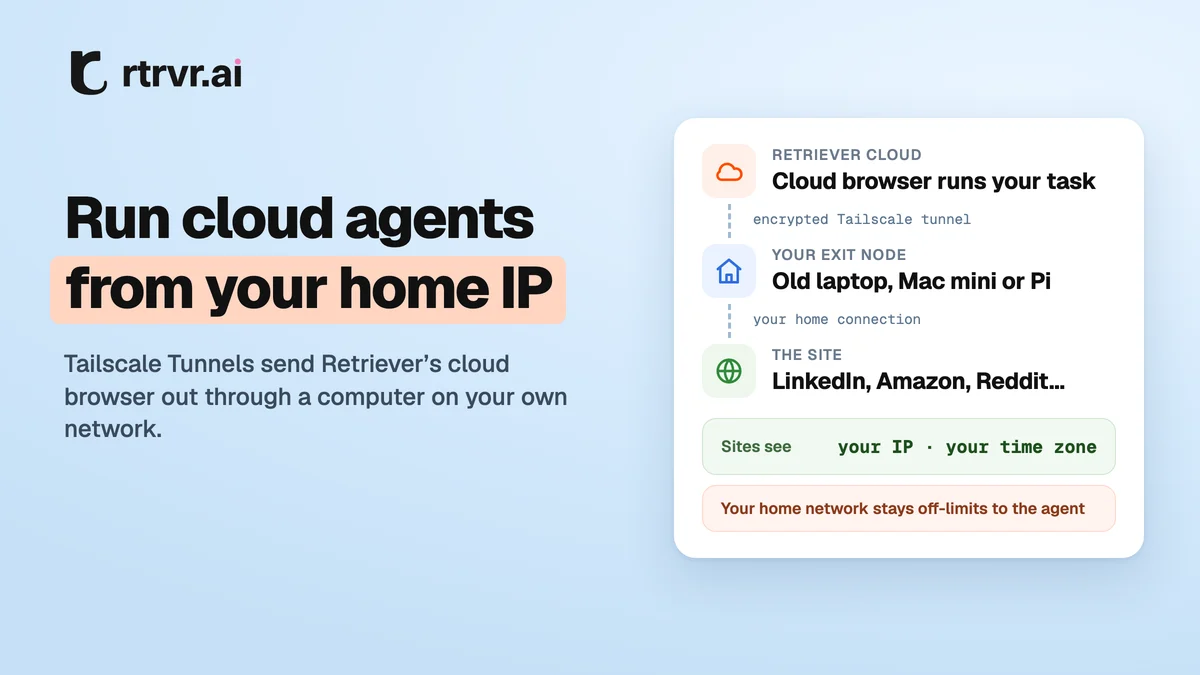
Cloud browser agents have a tell: they browse from a data center. When your LinkedIn, Amazon or Reddit account suddenly signs in from a server rack in another state, at an hour you're usually asleep, sites notice. Managed proxies help, but the address still isn't the one your account normally uses.
Today we're launching Tailscale Tunnels in beta. Retriever's cloud browser can now send its traffic out through a computer on your own network, such as an old laptop, a Mac mini or a Raspberry Pi. Sites see the IP address and time zone you already browse from.
How it works
Tailscale joins your devices into a private network called a tailnet. Any device in it can be an exit node: the other devices can send their internet traffic out through it.
When you connect Retriever, an rtrvr-cloud-… device joins your tailnet. On a run that uses the tunnel:
- Retriever's cloud browser runs your task.
- Its traffic travels through an encrypted Tailscale tunnel to your exit node.
- Sites see your connection's IP, and the browser's time zone and language match your exit node's location.
The tunnel belongs to that one run's browser. No other run shares it while the run lasts, and when the run ends the tunnel closes and the browser is replaced with a fresh one.
Set it up in about 10 minutes
- Pick a computer that stays on and install Tailscale on it. The free Personal plan works.
- Make it an exit node. On macOS or Windows, choose Exit Node → Run Exit Node in the Tailscale menu. On Linux or a Raspberry Pi, turn on IP forwarding and run
sudo tailscale set --advertise-exit-node. Then approve it in the Tailscale admin console under Edit route settings. - Connect Retriever. In Retriever Cloud, open Routing → Add a proxy or Tailscale tunnel → Tailscale, press Sign in with Tailscale and approve the new device. The tunnel is saved as Home via Tailscale.
- Run through it. Pick it for one chat, or make it your default in Cloud Settings → Proxy Config.
The Tailscale tunnels guide covers each step, parallel runs, and API and MCP calls.
Example: investor research on a schedule
Say you're raising a seed round. Your tunnel goes through a Mac mini at home, and Cookie Sync has brought your LinkedIn login to Cloud. You ask Retriever:
Find 10 seed investors on LinkedIn who've backed AI developer tools this year. Send each one a connection request with a short note that mentions a company they backed.
The run browses LinkedIn signed in as you, from your own IP. Once the notes read the way you want, turn the run into a schedule for 8 AM every day. A schedule keeps the route of the run it was made from, so every scheduled run goes through your tunnel too.
Keep the volume close to what you'd do by hand. A home IP makes the agent look like you; it doesn't change what a site's rules allow.
What we built in
- Your home network stays off-limits. The cloud browser can't open your router's admin page, your printer, your NAS or any other device on your network or tailnet. Only public sites go through the tunnel.
- No silent fallback. If your exit node is offline, the run stops before it starts and tells you why. It never switches to a data-center route instead.
- No leaks around the tunnel. WebRTC is limited to the tunnel, so it can't reveal the cloud server's address.
- No proxy credits. The traffic uses your own connection.
- Secrets stay in the vault. If you connect with a Tailscale OAuth client or auth key instead of signing in, it's encrypted and never shown again.
We checked each of these in production before launch. Sites saw the home IP, router and tailnet addresses were refused, and turning Tailscale off stopped the next run instead of rerouting it.
Limits during the beta
- One run at a time on a signed-in tunnel. For parallel runs, connect with an OAuth client.
- The exit node has to stay on and awake.
- Speed follows your upload speed, because pages travel through your connection.
- The rtrvr device's key expires after 180 days unless you turn off key expiry for it in Tailscale.
Try it
Open Routing in Retriever Cloud and choose Tailscale. The guide walks you through setup. If you get stuck, tell us on Discord.


