
 Add to Chrome

We gave Retriever a CRM record and asked it to change the owner to Team Beta. If the record was locked, we wanted the agent to leave it alone and tell us who owned it.
The agent came back with “Inbox.” It said the record was locked and the owner hadn’t changed. How could we check? In the saved run, the page showed Owner: Inbox. When the agent tried Save owner, the tool returned an error saying the button was disabled.
We partnered with Felix, an independent auditor, so anyone using Retriever Cloud or Relay can inspect the evidence behind an answer. If you opt in, Felix compares your instructions and the agent’s answer with the steps and page text Retriever saved.
What the CRM receipt said
The pilot receipt flagged three parts of our request that conflicted with the locked page. It listed the agent’s two claims separately, both as “recorded.” A “failed” badge for the whole run would have missed the point. The edit failed, and the agent correctly told us why.
Open a finding on the card to see which instruction or claim Felix checked. Confirmed means a saved step or page supports it. Not confirmed means the record leaves the question open. An inconsistency means Felix found evidence that conflicts with it. For example, if the agent had said “I changed the owner,” you’d want to see that error from the Save button.
The CRM enforced the lock. Felix reviewed what happened afterward. If you’re building an agent that can edit records or approve payments, keep the permission check where the write happens.
Why we record the tool call and the page
Felix’s team tried a small experiment with a run on example.com. They submitted the same request and final answer twice. In the first version, the saved run contained the agent’s script. In the second, they included the calls the script actually made and the page the agent read.
| What Felix received | Lines it could tie to a step or to words on the page |
|---|---|
| One planning step, no saved page | 0 of 6 |
| Three steps and one saved page | 6 of 6 |
That test changed what we save. Retriever records individual browser tool calls and their results, including errors. A capture ID connects each saved page to the step that read it.
Felix’s reading model proposes a step or a quote for each part it checks. Felix then looks up the step or matches the quote byte for byte against the saved text. It drops citations it can’t find. The lookup establishes that the words appeared on the page. Whether those words support the answer is the model’s judgment.
Even a successful click on Save only tells you the agent pressed the button. To establish that the CRM stored a new owner, you’d want a separate reading of the record after the write. Felix can keep before-and-after readings with the run today. Its findings don’t yet use them.
How the receipt gets back to your run
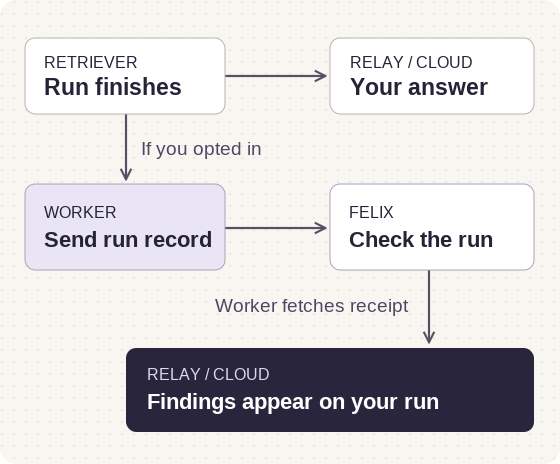
Retriever returns the answer when the task finishes and queues the check separately. While the receipt is pending, a background worker asks Felix for it about every ten seconds. You can keep working. The card updates when the receipt arrives.
For workspaces with notifications enabled, Felix can tell us when the receipt is ready. Our backend checks the signature against the original message bytes and uses the event ID to ignore duplicates. The worker fetches the receipt from Felix. If the notification never arrives, the next poll can still pick it up.
Try it on a run you want to keep
In Relay or Retriever Cloud, turn on Check future saved runs in Settings or from a finished run. Checks start with your next eligible saved run. Retriever skips Private Mode runs. Opting in shares the request, the agent’s answer, tool calls and results, and recorded page text and addresses with Felix. The Felix guide lists the full set and explains how to turn checks off.
Open Independent check by Felix on a finished run and pick a finding you care about. If you stopped the agent halfway through, you can still inspect the steps it took before you stopped it.
For an audit or compliance review, choose Download report. Open report.html to read the findings. Inside the download, sealed-record.zip holds the evidence, a signed checkpoint and a verifier. A reviewer can run the verifier and compare the signing key’s fingerprint with one they get separately from Felix. For the CRM run, that gives a reviewer a way to check that the saved page and the failed click are still the same ones Felix examined.


