
 Add to Chrome
Your next customer might be posting on LinkedIn right now. You can ask Retriever to find them, read what they shared, and leave a useful comment about your business. Or send a personal message. Then schedule the task to run again tomorrow.
In this demo, I asked Retriever to find relevant LinkedIn posts and comment about rtrvr.ai. Then I synced my X account and asked it to reply there too. The work ran in Retriever Cloud.
Find your next customer on LinkedIn and X
The prompt, account setup, LinkedIn comment, and X reply. Watch the full Cloud demo.

We’ve brought saved logins, Chrome cookie sync, and Tailscale tunnels together to make this work on the sites you use. Here’s what each one does and how to get started.
What you can hand off
- Find customers and engage. Describe who buys your product. Find relevant posts, rank the matches, and add a comment that speaks to what each person said.
- Send personal outreach. Give Retriever a prospect list and your offer. Ask it to read their recent posts and send a specific DM or connection request where available.
- Watch target accounts. Follow company updates, launches, and hiring news. Get the source and a useful reason to reach out.
- Learn how customers talk. Collect the questions, objections, and phrases people use. Bring that language into your content and sales messages.
You choose the task and the volume. Ask for drafts first, or tell Retriever which replies and messages to send. Start with a customer-search task.
Why signed-in sites need more than a cloud browser
A fresh cloud browser starts without your account’s session. Even after you sign in, a site may reject a data-center IP or ask you to verify the account again.
Cookie sync brings your existing sign-in to Cloud. Saved logins let Retriever sign in again when needed. Tailscale sends the traffic through your own home or office connection. Together, they address the session and network changes that often interrupt cloud automation.
This helps with sites that block cloud IPs. It does not remove a site’s checks or limits. LinkedIn, X, and other sites can still ask for verification or restrict activity.
Connect an account
Open Secure logins in the Cloud sidebar. You have three ways to connect.
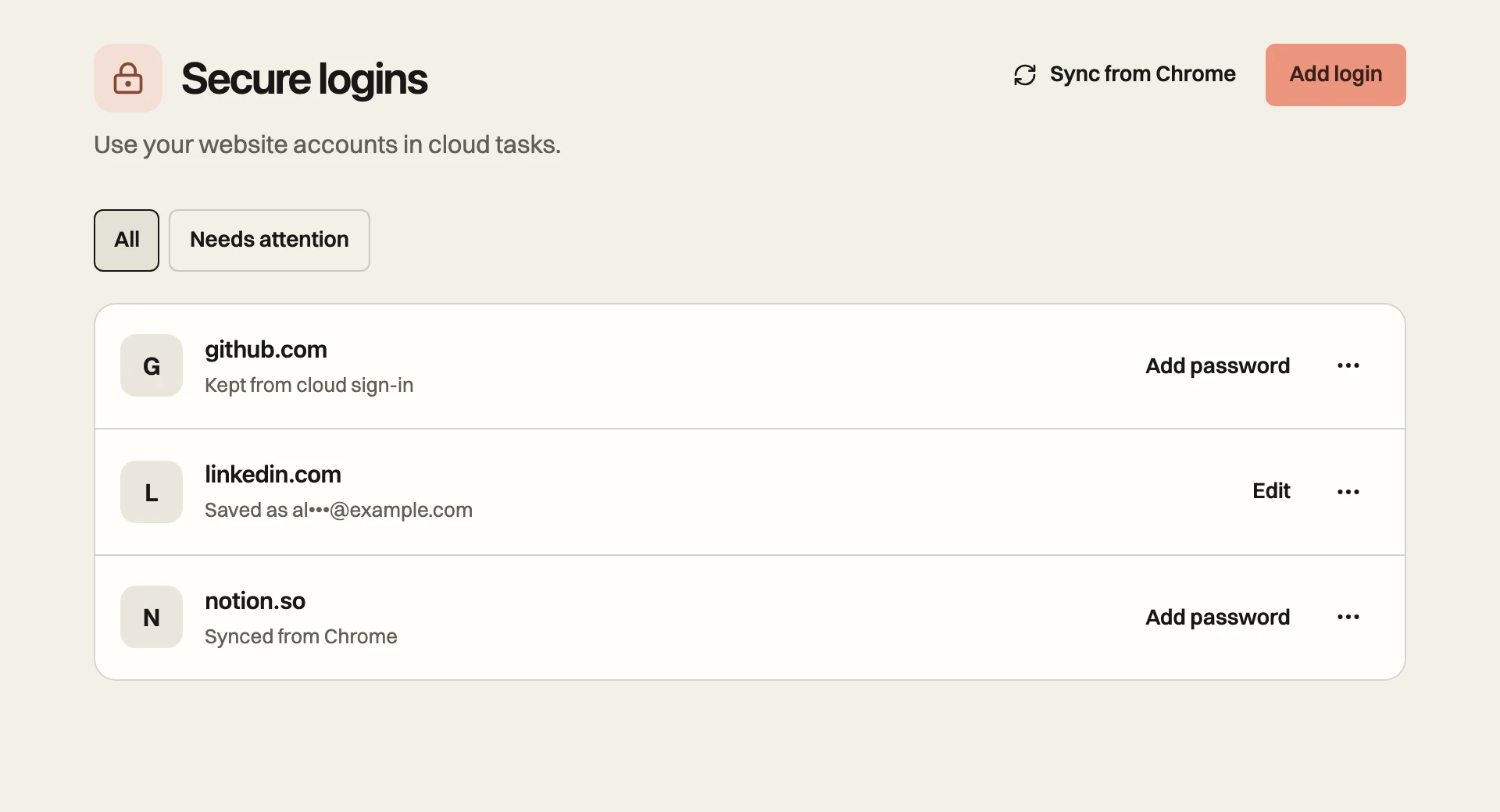
1. Sync a sign-in from Chrome
Use this when you’re already signed in to LinkedIn, X, or another website in Chrome.
- Install the Relay Chrome extension and sign in to the same Retriever account you use in Cloud.
- Open the website in that Chrome profile and make sure you’re signed in.
- Open Relay’s lock icon. Under Sync from Chrome, enter the website and choose Add site. Allow Chrome access when prompted.
- Choose Sync now to send a fresh copy. In Cloud, use Default in the Logins menu for that session.
Only sites you add are synced. You don’t need to copy cookies by hand or paste them into a prompt. Chrome sync requires a paid plan.
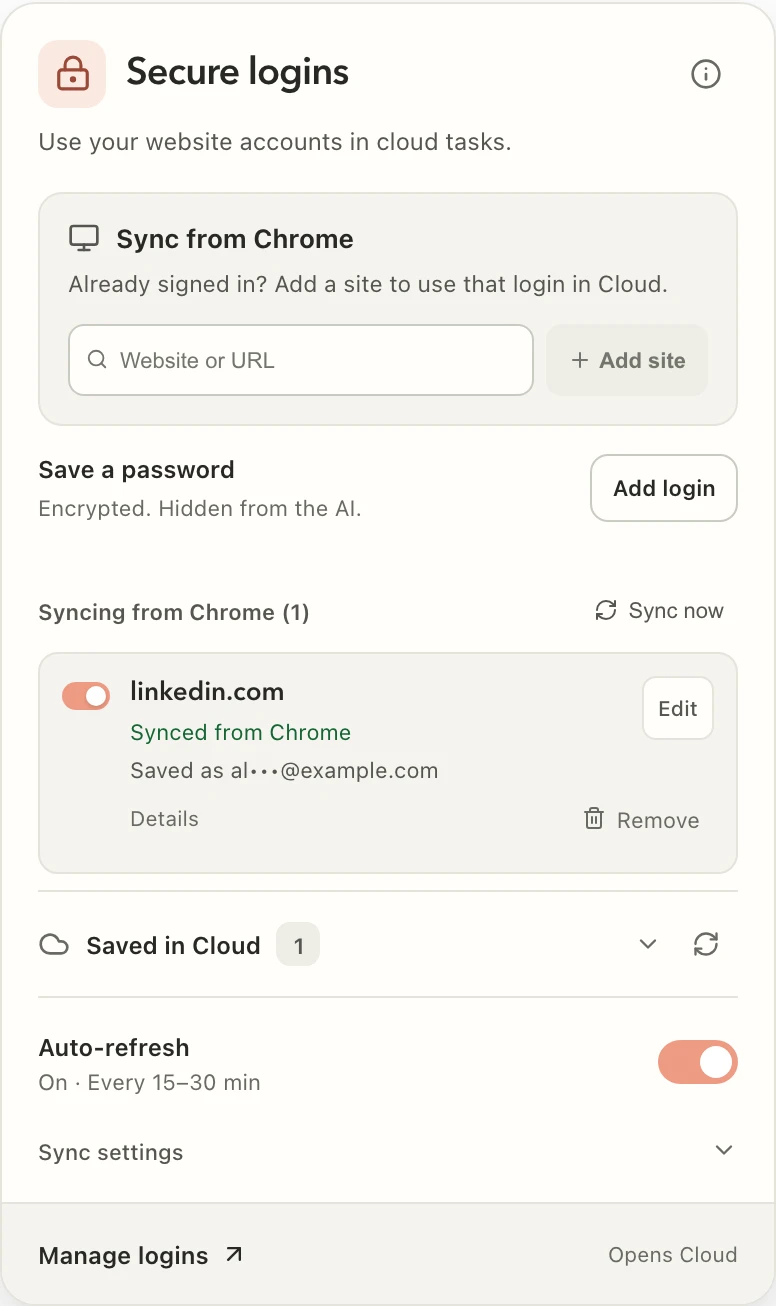
Keeping it fresh: Auto-refresh turns on when you add your first site, unless you previously paused it. The recommended Auto setting checks every 15–30 minutes. You can change the interval in Sync settings. Login changes also sync for enabled sites while Chrome is open.
Chrome needs to be open to send updates. Cloud can use the last saved session after Chrome closes. If the site expires that session, you may need to sync again or sign in again. The refresh button beside Saved in Cloud only reloads the list; Sync now sends a new copy.
2. Save a login for later sign-ins
Choose Add login and enter the website, username or email, and password. If the site uses an authenticator app, you can also save its setup key under 2FA code (optional). This is the setup key that generates codes, not a temporary six-digit code.
When a task needs to sign in, Retriever uses the matching saved login. Its sign-in code fills the credentials on the website. The AI model does not receive your saved password or authenticator setup key.
If the site asks for an email code, text code, CAPTCHA, or passkey, the task pauses for you. Add credentials in Secure logins, never in chat.
3. Sign in yourself in Cloud
Choose Take control or Sign in yourself during a task. Complete the site’s sign-in in the cloud browser, then hand control back and continue.
After a successful sign-in, Retriever saves the site’s cookies and supported browser storage for later tasks in the same profile. The next run restores that session in its cloud browser. You don’t need to keep the original browser open.
Use your home or office IP with Tailscale
Tailscale connects devices through a private, encrypted network. An exit node is a computer that sends traffic out through its own internet connection.
Retriever still runs the browser in Cloud. Tailscale carries that browser’s traffic through your exit node, so the website sees your home or office IP. You don’t need to expose a public proxy port on your computer.
- Choose a device that stays on. Install Tailscale on an old laptop, Mac mini, Raspberry Pi, or another computer you own.
- Enable the exit node. In Tailscale, choose Exit Node → Run Exit Node. Approve it in the Tailscale admin console under the machine’s route settings. Linux also needs IP forwarding; follow the exit-node setup guide.
- Connect it to Retriever. In Cloud, open Routing → Add a proxy or Tailscale tunnel → Tailscale. Choose Sign in with Tailscale and approve the Retriever device.
- Choose the route. Select your computer under Routing → Tailscale tunnels. To use it by default, save it under Cloud Settings → Proxy Config.
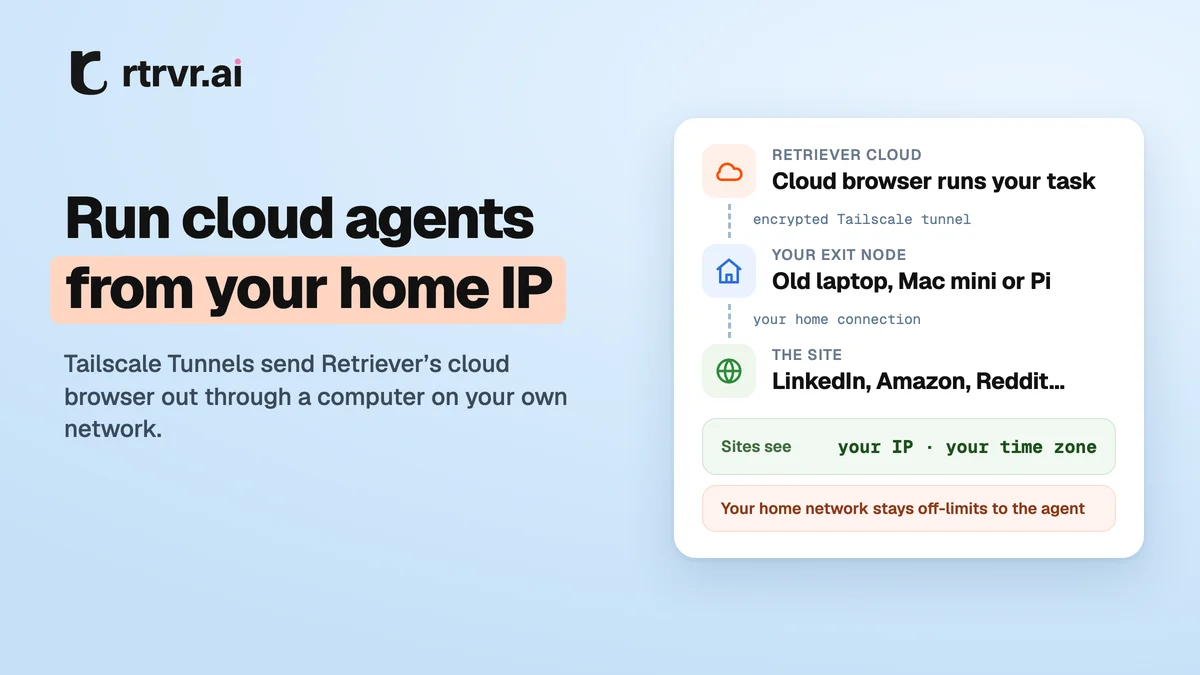
The exit node must stay on and awake. The cloud browser’s time zone and language follow the connection’s location. WebRTC stays inside the tunnel. The cloud browser cannot use it to open your router, printer, or other private devices on your network or tailnet.
If Tailscale cannot connect, Retriever retries once, then stops before the task starts. You can retry, cancel, or explicitly choose a Retriever proxy for that run. A proxy uses a different IP and normal proxy charges apply. Schedules default to retrying and stopping too; you can allow proxy fallback in the schedule.
The simple sign-in method supports one run at a time on that tunnel. For parallel runs, use the OAuth-client setup in the Tailscale guide. Tailscale traffic uses your own connection, so it does not consume Retriever proxy credits.
How we store logins and sessions
Saved passwords and authenticator setup keys use AES-256-GCM encryption. The login list shows a masked username or email, and does not reveal saved secrets. Passwords are encrypted separately from browser sessions.
Synced sessions belong to your Retriever account and selected profile. Default cookies are access-controlled but are not encrypted by the browser-profile key. Named profiles encrypt cookies and site sign-in state with their own key, protected by Google Cloud KMS. Chrome sync currently saves to Default. For separate client or work accounts, create named profiles and sign in within each one.
Tailscale credentials are kept encrypted. The tunnel carries public website traffic; it does not give the cloud browser access to your private network.
To remove a site’s future access, delete both its saved login and stored sign-in, and stop syncing it from any other Chrome profiles. Removing a login does not cancel an active task, so cancel that task too if needed. The Secure logins guide explains each removal control and the storage details.
Run it once. Then put it on a schedule.
Start with a small task so you can check the matches and wording:
Find recent LinkedIn posts from potential customers for my business. Read my website first. Rank the strongest matches and explain why they fit. Add a short comment to the best two posts that connects what I offer to what the person actually said. Return the post links and comments.
Add your business URL and customer criteria. Choose the right login profile and route, then run it. Once the result looks right, create a schedule for the next run. Include the number of people to contact and instructions to skip people or posts you’ve already contacted.
Scheduled tasks run in Cloud without an open browser tab. They reuse the selected profile’s session, or sign in with a matching saved password when needed. Site verification can still pause a run. If you use Tailscale, keep the exit node awake.
Cookie sync and schedules require a paid plan. Usage depends on your plan and the tasks you run.
Put Retriever to work
Set up your customer search or connect an account in Cloud. Give it your business, your customers, and the job you want done.
Watch the full demo, the one-minute Short, or the Instagram reel.


