
 Add to Chrome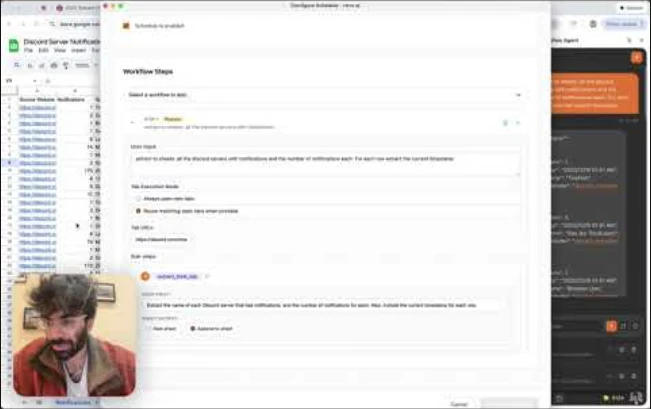
The free plan includes one schedule that runs once a day or less often, in the Cloud or in your Chrome; its runs use your daily Free Mode allowance, and its result shows a sponsored card. More schedules and faster schedules need a subscription, and their runs use credits for the resources they consume. First try the task as a one-time interactive run, then schedule the version you have checked. Compare plans.
Turn any successful workflow into a scheduled task that runs on autopilot. Schedule from the Chrome Extension for local execution using your logged-in sessions, or export to Cloud for 24/7 headless operation. Perfect for price tracking, inventory monitoring, job board scraping, news aggregation, and competitive analysis.
Creating a Schedule
- 01
Run a task successfully in the chat
- 02
Click "Schedule" on the agent's response
- 03
Set a title and choose frequency: once, hourly, daily, weekly, or custom cron
- 04
Pick your start time and configure advanced options
- 05
Save: your schedule is now active
Browser Execution (Chrome Extension)
Scheduled tasks run in your Chrome browser using your existing logged-in sessions, no re-authentication required. Tasks execute while your browser is open. If a scheduled run is missed (browser closed), it runs automatically when Chrome reopens.
Schedule set for 9 AM → Browser closed overnight → Opens at 10 AM → Task runs immediatelySmart Tab Reuse
Configure schedules to reuse matching open tabs instead of opening new ones. This can reduce sign-in churn on authenticated sites where the session is still valid.
- 01
In Schedule Config, find "Tab Execution Mode"
- 02
Select "Reuse matching open tabs when possible"
- 03
Keep your target site open in a tab
- 04
The agent uses your existing logged-in session
Where Runs Start
A schedule made from a text request (by the agent, or with the MCP schedule tool) has no recorded tabs. Each of its runs starts in its own background tab, so it never takes over the page you're working on. To run on whichever tab is active when the schedule fires instead, open Cloud → Schedules → Extension → Edit schedule and set Where runs start to "My active tab when it runs" (over MCP: tab_selection: "active_tab"). Schedules with recorded tabs keep each step's Tab Execution Mode. Needs extension 37.9.5 or later.
Auto-Append to Sheets
Build a master tracking sheet that grows over time. Configure your schedule to append new data as rows to the same Google Sheet instead of creating a new sheet each run.
- 01
In Schedule Config, expand the workflow step
- 02
Find "Sheet Output Configuration"
- 03
Select "Append to same sheet on each run"
- 04
Each scheduled run adds new rows to your master sheet
Daily job scrape → New listings append as rows → One sheet tracks all jobs over timeMulti-Step Workflows
Chain multiple workflows together in a single schedule. Each step can have its own tab handling and sheet configuration. Steps can pass context using "Reuse tabs from previous step."
Step 1: Scrape job listings → Step 2: Analyze fit with resume → Step 3: Export to tracking sheetCloud Scheduling (24/7)
Cloud schedules run on rtrvr.ai's headless cloud browsers, so they keep going when your laptop is closed. They live in the Cloud dashboard (Cloud → Schedules), repeat every N minutes (5 or more), hours or days (or run once), can write into the same Google Sheet, Doc or Slides deck on every run, and can notify you when a run finishes.
Save scheduled results to Google Sheets
- 01
Connect Google Drive in Cloud Connectors, using an account that can edit the spreadsheet. Cloud refreshes its saved Google authorization automatically; Chrome can stay closed.
- 02
In the schedule's Options tab, open Update existing files and choose Use these files if writing the results is required, then enable Google Sheets. Click Choose from Google Drive and pick the spreadsheet to grant access to the file. Pasting an ID or URL identifies a file but does not grant access.
- 03
Choose Write to an existing tab, then select the actual tab from the list. The saved tab ID survives a rename, including a tab whose gid is 0. If you want a custom name that does not exist, create it in Google Sheets first.
- 04
For separate outputs, choose Create a new tab for each run. The optional prefix can contain up to 70 characters, excluding
[ ] : * ? /and backslash. The tab is created when the run writes data. - 05
The editor checks file access, edit permission, and available tabs without running the workflow or spending workflow credits. The schedule checks its destination again before starting each run. Use Check again after correcting access.
Use the tab's real name in any language. A missing/default Sheet1 name can resolve to the only tab, and a unique case-insensitive match can resolve to the actual title. Multiple possible tabs or a missing custom name require a selection. rtrvr does not redirect a named destination to an unrelated tab.
With Force, extracted data alone does not complete delivery. Cloud requires a confirmed Google Sheets data write. If it cannot confirm one, it retains the output and reports partial completion, including when the result has zero rows. Extracted strings use RAW writes to preserve dates, decimal strings, leading zeros, and text in any language.
When a scheduled Sheet stays empty
- 01
Open Run History and inspect the run's error and retained output before starting another paid run. A destination preflight failure stops before the workflow starts and uses no workflow credits.
- 02
If Drive is connected but the file is inaccessible, select it through the picker and check the connected Google account's edit permission. Reconnect when the error says the Google authorization cannot be refreshed.
- 03
If the tab is missing, select an existing tab or create the intended tab in Google Sheets. Do not replace a specific destination with Sheet1 just to bypass the error.
- 04
A tool that only writes Sheets should use sandbox mode and the built-in Sheets helpers. Remove or repair a broken tool in the saved Tools inventory. Removing it from one workflow does not remove the saved tool from other runs.
- 05
If the outcome of an append is uncertain, inspect the Sheet before rerunning. The runtime deduplicates identical forced appends within a running request; a new run or a process restart does not provide an exactly-once guarantee.
Creating a Cloud Schedule
- 01
From the dashboard: open Cloud → Schedules, click New schedule, then choose a Task and its Timing. Under Options, you can update existing files and send notifications. Switch to My browsers to manage tasks that run through the Retriever extension.
- 02
From a cloud chat: ask the cloud agent to repeat the task, e.g. "check these prices every morning". The agent schedules the run it is working on (its
rtrvr.schedulestep). The schedule is created only if that run succeeds, then replays the run at the frequency you asked for. It appears in Cloud → Schedules under the name the agent gave it.
A cloud schedule runs one of three targets, chosen on the Task tab of the schedule editor (Cloud → Schedules): a Saved task (repeat a completed cloud run, the default), a New task (up to 4,000 characters, with up to 20 optional start URLs), or tools (1–10 of your saved custom/MCP tools, run in order with the parameters you fill in). The dashboard sends that choice to the createSchedule / updateSchedule callables as a target object; a request with only sourceExecutionId still means the execution kind. Those callables need a signed-in rtrvr.ai session, not an API key. There is no REST endpoint for creating or changing schedules.
// target: prompt
{
  "name": "Daily price check",
  "target": {
    "kind": "prompt",
    "userInput": "Open each competitor's pricing page and summarize what changed since the last run",
    "urls": ["https://example.com/pricing"]
  },
  "frequency": { "unit": "days", "every": 1 },
  "timeZone": "America/New_York"
}

// target: tools (ordered saved-tool steps)
{
  "name": "Sync leads to Slack",
  "target": {
    "kind": "tools",
    "steps": [
      { "toolName": "fetchNewLeads", "parameters": { "since": "24h" } },
      { "toolName": "postLeadsToSlack" }
    ]
  },
  "frequency": { "unit": "hours", "every": 6 }
}

// target: execution (replay a completed cloud run)
{ "target": { "kind": "execution", "sourceExecutionId": "exec_123" } }
Frequency
A cloud schedule repeats at a fixed interval from its start time, in the schedule's time zone (an IANA name such as America/New_York; UTC by default). Cloud schedules do not take cron expressions: the start time sets the time of day, and the interval sets how often it repeats. The shortest interval is 5 minutes, because each run starts a cloud browser and uses credits: a faster frequency is refused, and the dashboard raises a shorter custom value to 5 minutes.
| Dashboard option | Frequency |
|---|---|
| Every 15 minutes | { "unit": "minutes", "every": 15 } |
| Every 6 hours | { "unit": "hours", "every": 6 } |
| Daily | { "unit": "days", "every": 1 }, at the start time |
| Weekly | { "unit": "days", "every": 7 }, on the start day |
| One-time | { "unit": "once" }, at the start time (right away if that time has passed) |
Notifications
The Notifications tab sends every finished run, successful or not, to email, Slack, Discord, a WhatsApp number linked to your account, or your own webhook. The webhook gets the same payload as an /agent completion callback, signed if you set a secret. See Webhooks.
Extension schedule delivery & alerts
Extension schedules can deliver each run too. When a run finishes, the extension hands it to rtrvr.ai, which sends it to the schedule's channels (webhook, WhatsApp, email, Slack or Discord), trying each one up to 3 times. Set it up from Delivery & alerts (the bell on the schedule in the side panel or in Cloud → Schedules → Extension), or just ask in chat: "check prices every morning and WhatsApp me the results", "send my daily digest to https://… with no notifications".
- 01
Chrome notification on this computer: *Every run*, *Only if something fails*, or *Never*. Once any channel is on it defaults to *Only if something fails*: the notification appears only when the run fails or a delivery still fails after 3 tries. Either way, new runs show as a count on the Schedules button in the side panel until you open it.
- 02
Webhooks must be public
https://URLs, because delivery goes out from rtrvr.ai. For a local n8n or server, expose it withn8n start --tunnelor ngrok and use that URL. - 03
Payload: the same envelope as a cloud schedule's webhook (
rtrvr.execution.succeeded/rtrvr.execution.failed), plusdata.schedule(id,title,runId,deviceId,source: "extension") and a one-linedata.summary. With a secret set, requests carryX-Rtrvr-Signature: t=<unix seconds>,v1=<hex HMAC-SHA256 of t.body>. - 04
Send test in the settings posts a sample run to every channel that is on, so you can check your receiver before the next run.
- 05
Needs extension 37.9.1 or later. If the computer can't reach rtrvr.ai after a run, it shows the notification instead (unless notifications are set to *Never*).
Schedule Management
Manage extension schedules from the Schedules dropdown in the extension side panel. Manage cloud schedules in Cloud → Schedules: each card can be edited, paused or resumed, run now, or deleted, and its menu can skip the next run, cancel a run in progress, open the last run, or show the Run History.
You can also ask the agent in the side panel to change a saved extension schedule, for example "run my price check every 2 hours" or "change its task to also check shipping costs". It edits that schedule in place instead of creating a second one, and it can pause, resume, rename or delete a schedule the same way.
Edit a Cloud Schedule over MCP
- 01
Find the schedule with
listandkind: "schedules"(cloud items havesource: "cloud"and anid), then callschedulewithschedule_idset to thatid. It is edited on rtrvr.ai: no browser ordevice_idis needed, the same schedule is changed in place, and nothing new is created. Addsource: "cloud"to make sure the call never reaches an extension schedule; an ID that is not one of your cloud schedules is then refused. - 02
An edit can set
frequency({ "unit": "minutes" | "hours" | "days" | "once", "every": n }, as the dashboard stores it) orperiod_in_minutes(60 is stored as hourly, 1440 as daily),time_zone(an IANA name such as"Europe/London"),start_at(the dashboard's Run at, ISO 8601),name,notifications(only the channels you name change:email: trueor an address,whatsapp: true, a Slack, Discord or webhook URL, orfalseto turn one off), anduser_input(the complete new task text; prompt schedules only). - 03
enabled: falsepauses the schedule andenabled: trueresumes it (resuming needs a paid plan, or on the free plan a daily schedule with no other one active). Withoutenabledthe status stays as it is: editing a paused schedule leaves it paused, and no edit starts a run. - 04
The validation is the dashboard's: a cadence under 5 minutes is refused, and a dashboard change that lands while the call is being applied is refused rather than overwritten. Restating a value that has not changed leaves the next run where it was. When the time zone changes, the run keeps its clock time in the new zone.
- 05
The reply lists each change (
before→after) with the schedule'sstatus,frequency,timeZoneandnextRunAt. Over REST a refusal answers 400, 402 (a paid plan is needed to resume), 404 (no such cloud schedule) or 409, and says what was applied before it, if anything.
// schedule tool arguments: make a cloud schedule run hourly (a paused one stays paused)
{ "schedule_id": "YOUR_CLOUD_SCHEDULE_ID", "source": "cloud", "frequency": { "unit": "hours", "every": 1 } }

// Resume it (send "enabled": false to pause)
{ "schedule_id": "YOUR_CLOUD_SCHEDULE_ID", "source": "cloud", "enabled": true }

// The reply (shortened)
{
  "success": true,
  "source": "cloud",
  "scheduleId": "YOUR_CLOUD_SCHEDULE_ID",
  "changes": [{ "field": "frequency", "before": "every 5 minutes", "after": "every hour" }],
  "status": "paused",
  "frequency": "every hour",
  "timeZone": "Europe/London",
  "nextRunAt": null,
  "runStarted": false
}
Create or Edit an Extension Schedule over MCP
- 01
Without
schedule_id, every call to the MCPscheduletool creates a new extension schedule on a connected device, even when the text says "update" or names an existing schedule. - 02
To change a saved schedule, find it with
listandkind: "schedules"(extension items carryscheduleIdanddeviceId), then callschedulewithschedule_idanddevice_id. The same schedule is rewritten and nothing new is created; an unknown ID fails. - 03
An edit can set
user_input(the complete new task text, stored as written),period_in_minutes(the new cadence),enabled(falsepauses,trueresumes),tab_selection("new_tab"or"active_tab"), andstep(which step's task text to replace in a multi-step schedule). - 04
Editing needs extension 37.9.5 or later on that device.
// schedule tool arguments: new task text and cadence for a saved schedule
{
  "schedule_id": "YOUR_SCHEDULE_ID",
  "device_id": "YOUR_DEVICE_ID",
  "user_input": "Open the three competitor pricing pages and list every price that changed since the last run",
  "period_in_minutes": 120
}

// Pause it (send "enabled": true to resume)
{ "schedule_id": "YOUR_SCHEDULE_ID", "device_id": "YOUR_DEVICE_ID", "enabled": false }
Run a Cloud Schedule Now
Run Now in a schedule card's menu starts a one-off run of the schedule's target a few seconds later, without moving the next scheduled time. If a run of that schedule is still going and its Concurrency Policy isn't Allow overlap, the manual run is recorded as skipped. Force Run Now starts it anyway. Manual runs show in the Run History next to scheduled ones.
Reading Results
- 01
Cloud schedules: Run History in the schedule card's menu lists each run's status, duration, credits used, summary and error, with a link to the full run. To have results sent to you instead, turn on a notification channel.
- 02
If Tailscale cannot connect: Under Timing > Connection & overlapping runs, the default is Retry, then skip. Retriever retries a temporary connection failure once, then ends that occurrence if it is still unavailable. The next scheduled run keeps the same route. On a paid plan, choose Use Retriever proxy to allow fallback to a different IP at normal proxy rates. Allowing fallback for a single task does not change this schedule.
- 03
From a cloud chat: ask the agent, e.g. "what did my price check find this week?". It reads your cloud schedules and their recent runs.
- 04
Over MCP / REST (API key):
listwithkind: "schedules"returns your cloud schedules and the schedules your extension devices have synced to rtrvr.ai. Each item hassource: "cloud"orsource: "extension". Cloud items includeid,name,status,frequency,nextRunAt,lastRunAtandlastRunStatus. Extension items includescheduleId,deviceId,title,enabledandlastRunAt. - 05
check_resultswithkind: "schedules"answers a question about those schedules' recent runs. It also returns them asschedules. Each cloud entry lists its recentruns, withstatus,scheduledFor,startedAt,finishedAt,summary,errorMessage,creditsUsedandexecutionId. Both tools work while Chrome is closed. - 06
Narrowing:
idpicks one schedule: a cloud schedule's ID or name, or an extension schedule's title (a name only has to contain the text).limitsets how many recent runs to read per schedule (default 10, up to 100 for cloud schedules).source: "cloud"orsource: "extension"reads only one kind.device_idnarrows extension schedules only.
curl -X POST "https://mcp.rtrvr.ai" \
  -H "Authorization: Bearer rtrvr_your_api_key" \
  -H "Content-Type: application/json" \
  -d '{
    "tool": "check_results",
    "params": {
      "kind": "schedules",
      "source": "cloud",
      "id": "Daily price check",
      "user_input": "Which prices changed since yesterday?",
      "limit": 5
    }
  }'
The response (shortened):
{
  "success": true,
  "kind": "schedules",
  "query": "Which prices changed since yesterday?",
  "answer": "Daily price check (cloud): 2 prices changed since yesterday...",
  "itemsConsidered": 1,
  "schedules": [
    {
      "source": "cloud",
      "id": "8Xk2...",
      "name": "Daily price check",
      "status": "active",
      "frequency": { "unit": "days", "every": 1 },
      "nextRunAt": "2026-09-18T15:00:00.000Z",
      "lastRunStatus": "success",
      "runs": [
        {
          "runId": "8Xk2..._1789657200000",
          "status": "success",
          "scheduledFor": "2026-09-17T15:00:00.000Z",
          "startedAt": "2026-09-17T15:00:04.000Z",
          "finishedAt": "2026-09-17T15:02:10.000Z",
          "summary": "2 of 14 prices changed...",
          "errorMessage": null,
          "creditsUsed": 12,
          "executionId": "8Xk2..._1789657200000"
        }
      ]
    }
  ]
}Start a Scheduled Prompt from Another System
A schedule can't be called over HTTP, but its prompt can. Create a prompt trigger with the same text, and Zapier, Make, n8n, a CRM or your own backend can run that prompt whenever it needs to, separately from the schedule's own timing.
- 01
Open Cloud → Triggers and click New Trigger
- 02
In the target list choose Write a prompt…, paste the prompt your schedule runs, and add its start URLs if it has any
- 03
Optionally set a result webhook URL, then click Create Trigger and copy the trigger URL from the table
- 04
POST to that URL with an API key that has cloud agent access
curl -X POST "https://mcp.rtrvr.ai/v1/webhooks/trigger/YOUR_TRIGGER_ID" \
  -H "Authorization: Bearer rtrvr_your_api_key" \
  -H "Content-Type: application/json" \
  -d '{
    "input": "Only report products whose price changed by more than 5%",
    "webhookUrl": "https://your-app.com/rtrvr/price-check"
}'- 01
The stored prompt always runs as written.
inputis optional; it is added after the prompt as extra instructions and never replaces it. - 02
urls(optional) replaces the trigger's stored start URLs for that call. - 03
webhookUrl(HTTPS only) receives the run's result when it finishes; addwebhookSecretto have the payload signed. Without awebhookUrl, the result webhook saved on the trigger is used, if there is one. - 04
If the run finishes within about 25 seconds, the response contains its result (HTTP 200). Otherwise the call returns HTTP 202 with a
trajectoryId. The run keeps going, and its result goes to the webhook and shows in your Cloud executions. - 05
Errors: 403 when the API key has no cloud agent access, 404 when the trigger does not belong to the key's account, 400 for a non-HTTPS webhook URL.
// HTTP 202: the run is still going
{
  "success": true,
  "status": "accepted",
  "trigger": {
    "id": "YOUR_TRIGGER_ID",
    "name": "Price check",
    "targetType": "prompt",
    "toolName": null,
    "taskId": null,
    "promptPreview": "Open each competitor's pricing page and summarize what changed since the last run"
  },
  "trajectoryId": "5f0c1c9e-2b7a-4d4e-9a57-0c3f2b8d1e44",
  "message": "The cloud run started and is still executing. ...",
  "requestId": "...",
  "timestamp": "2026-09-16T09:00:04.512Z"
}Error Handling
- 01
Every cloud run's outcome (success, error, timed out, cancelled or skipped) and its error message are kept in the schedule's Run History
- 02
If a schedule's target can no longer run (for example, its saved tool was deleted), that run is recorded as an error and the schedule pauses with the reason on its card. Fix the target, then resume.
- 03
Notifications fire for failed runs too, so a broken schedule reports on the same channel as a working one
- 04
When a run is due while the previous one is still going, the schedule's Concurrency Policy decides: Queue latest (the default) runs only the latest missed occurrence once the current run ends, Skip if running drops it, and Allow overlap runs both
Best Practices
- 01
Test schedules with a one-time execution before enabling recurring runs
- 02
Use tab reuse for authenticated sites to avoid login walls
- 03
Use sheet append mode to build historical datasets over time
- 04
Set appropriate intervals: don't overwhelm target sites
- 05
Use webhooks for real-time notifications on completion
- 06
Check a schedule's Run History regularly to catch failures and slow runs early
- 07
Consider timezone differences for global operations
Platform Availability
| Capability | Extension | Cloud | API key (REST / MCP) |
|---|---|---|---|
| Create schedules from chat | ✅ | ✅ | MCP schedule tool (extension schedule on a connected device) |
| Edit, pause, resume, delete | ✅ side panel, or ask the agent | ✅ dashboard | MCP schedule with schedule_id edits, pauses or resumes a cloud schedule, or an extension schedule (extension 37.9.5+); deleting stays in the dashboard or side panel |
| Run on demand | No | ✅ Run Now | A prompt trigger runs the same prompt (a separate run) |
| Local browser execution | ✅ | No | No |
| Smart tab reuse | ✅ | No | No |
| 24/7 headless execution | No | ✅ | No |
| Auto-append to sheets | ✅ | ✅ | No |
| Multi-step workflows | ✅ | ✅ | No |
| Email / Slack / Discord / WhatsApp / webhook notifications | ✅ sent via rtrvr.ai | ✅ | No |
| Read results | ✅ side panel | ✅ Run History | list / check_results (cloud and extension schedules) |
| Missed-run catch-up | ✅ | No | No |