
 Add to Chrome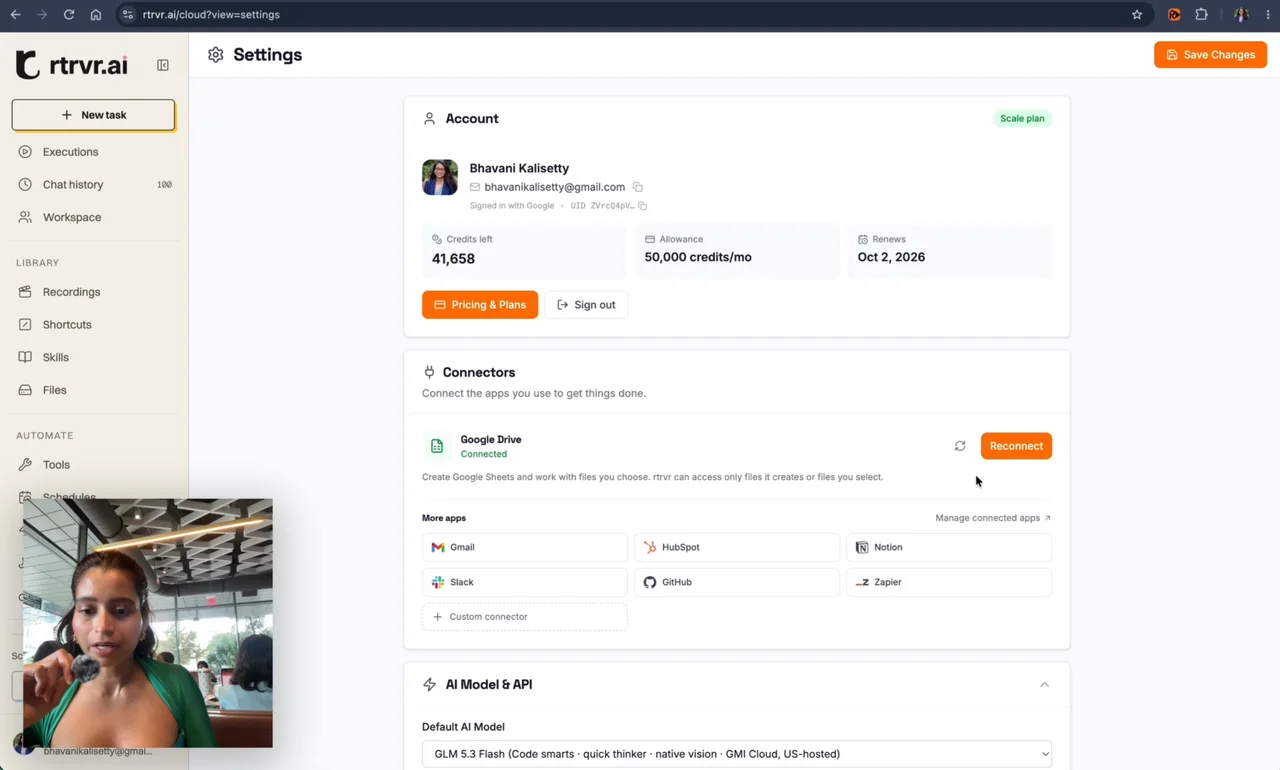
Connect the apps a task needs, then ask rtrvr to use them. Google Drive lets you create Sheets and work with files you select. Other apps add tools for email, contacts, documents, and more.
Watch the connection walkthrough. The video shows the earlier Settings layout; Cloud now has Connectors below Tools in the left navigation.
Connect Google Drive
- 01
Open Connectors in Cloud, below Tools in the left navigation.
- 02
Find Google Drive and choose Connect. Choose Reconnect if it says Needs access.
- 03
Choose the Google account that owns the files you want to use. On Google’s permission screen, allow file access before continuing.
- 04
Return to Retriever and check that Drive says Connected. Use Manage → Check connection to check authorization. For a scheduled destination, select the file in Schedules > Options > Update existing files to check file access and available tabs without starting a paid run.
Use Drive in the extension
Open your profile at the bottom of the extension, then choose Connectors. Drive is at the top, with Connect or Reconnect when needed. The info button shows access details and a Check connection action. Apps you have already added appear below it; choose an app to view its tools.
Choose Browse apps to open the full catalog in Cloud with the same rtrvr account. The extension keeps quick access close to your task; Cloud gives you more room to browse and set up apps.
Choose the files rtrvr can use
Drive access is limited to files rtrvr creates and files you select for it. It does not give rtrvr permission to browse your whole Drive. For an existing Sheet, use the Google file picker in your task to add it. A pasted link alone may not grant file access.
Cloud schedules use the saved Cloud Google connection and refresh access tokens on the server. They do not need an open Chrome session. A connected account still needs edit access to the selected file, and the configured tab must exist. See scheduled Sheets setup and troubleshooting.
Learn how to run a Sheets workflow or read the permission details.
Add another app
In Cloud Connectors, search for an app and select its row under Available. Follow its setup steps. The catalog includes Gmail, HubSpot, Notion, Slack, GitHub, and Zapier. Each app has its own connection; Drive access does not grant access to Gmail.
Some apps open a sign-in window. Others need details from the app’s settings. If you have an MCP server URL, choose Custom connector and enter the connection details your provider gives you.
Once added, the app appears under Your apps. Choose View tools to review, enable, refresh, or remove its tools. Cloud checks connections when you open this page and shows when it last checked. Choose Manage beside an app to reveal Check connection, Reconnect, and View tools. Briefly cached results avoid repeated requests; a successful check does not guarantee permission to every file or action.
Connect more than one Gmail account
In Cloud Connectors, choose Manage beside Gmail, then Add account, and pick the other account in Google’s window. Google shows its account picker only when more than one Google account is signed in to the browser, so if the account isn’t signed in, sign it in to Google first. In the extension, choose Gmail again in the connect dialog, or ask the agent: “connect my other Gmail account”. Each account appears under Your apps with its address and gets its own tools: the first account keeps gmail_mcp, and each added one is named after its address, such as gmail_jane_doe. Say which inbox to use, for example “draft the reply from jane.doe@gmail.com”; with several accounts connected and none named, the agent asks.
Fix a connection
| What you see | What to do |
|---|---|
| Drive needs access | Reconnect and allow file access on Google’s permission screen. This can happen if you skipped the file-access checkbox the first time. |
| Couldn’t check connection | Choose Manage, then Check connection in Cloud, or Retry in the extension. This checks again without opening consent. A temporary connection failure does not mean you removed access. |
| Drive says Connected, but one Sheet returns 403 | Check that the selected Google account can open that Sheet, then add it through the file picker. Reconnecting does not change the Sheet’s owner or sharing settings. |
| Cloud works, but the extension does not | Check Drive in the extension’s profile too. Google access can differ between the local extension and Cloud. |
| Another app stopped working | Choose Manage beside the app in Cloud, then Check connection. If it needs access, choose Reconnect and complete its setup flow. |
You can cancel a reconnect without removing an existing working connection. There is no need to sign out of rtrvr to try again.
Use a website you're signed in to
For tasks on Instagram or another signed-in website, choose your Chrome browser in Routing, or add that account to Secure logins for Cloud tasks. Browser logins and app connections are separate: syncing a Google login does not grant Drive file access.